
Web App Quick Start
Web App Video Tutorials
Buy BTC with Peach Web
Sell BTC with Peach Web
- Intro: Your phone holds the keys, your desktop gets the screen
- 1. Install the mobile app and create your account
- 2. Pair your browser
- 3. Add a payment method
- 4. Buy bitcoin
- 5. Sell bitcoin
- 6. Execute your trades and stay alert for notifications
- 7. Disconnect a session
Intro: Your phone holds the keys, your desktop gets the screen
The Peach web app at web.peachbitcoin.com is a companion to the mobile app, not a replacement. Your Peach account and the keys to your bitcoin live on your phone. The web app pairs with it, just like WhatsApp Web: you browse the order book, create offers and manage trades comfortably on your desktop, while every sensitive action is signed and confirmed on your phone. Our self-custody and no-Registration principles stay intact.
1. Install the mobile app and create your account
If you don't have Peach on your phone yet, install it through the App Store, Play Store, APK download or Zap Store and create your account. It only takes a few seconds, see the mobile Quick Start guide for the full walkthrough. Don't forget to create a backup!
2. Pair your browser
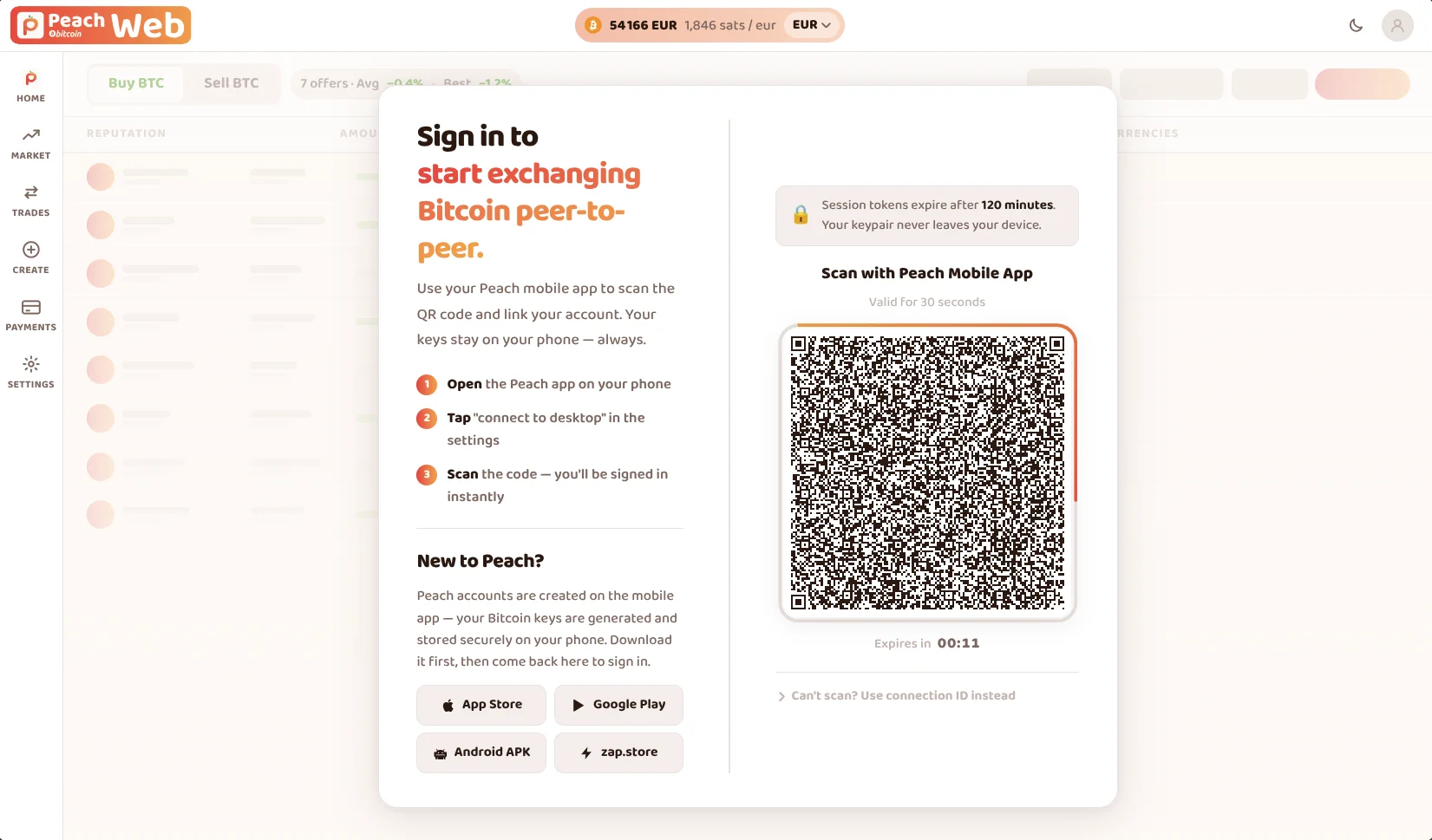 On your desktop, open web.peachbitcoin.com. A pairing QR code is shown. Always double-check you are on the correct URL
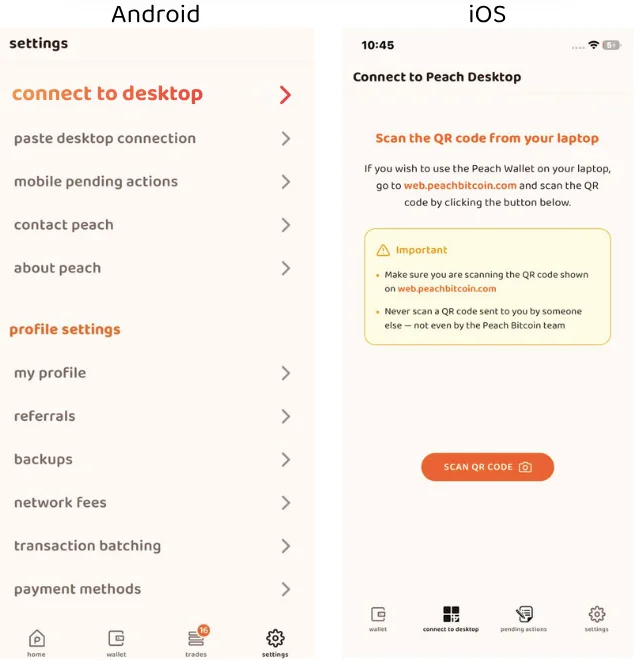 On your phone, open the Peach app and tap "Connect to desktop" (on Android you'll find it in the settings)
Point your phone's camera at the QR code on your desktop screen. TIP: you may have to get really close to the QR (especially for GrapheneOS users).
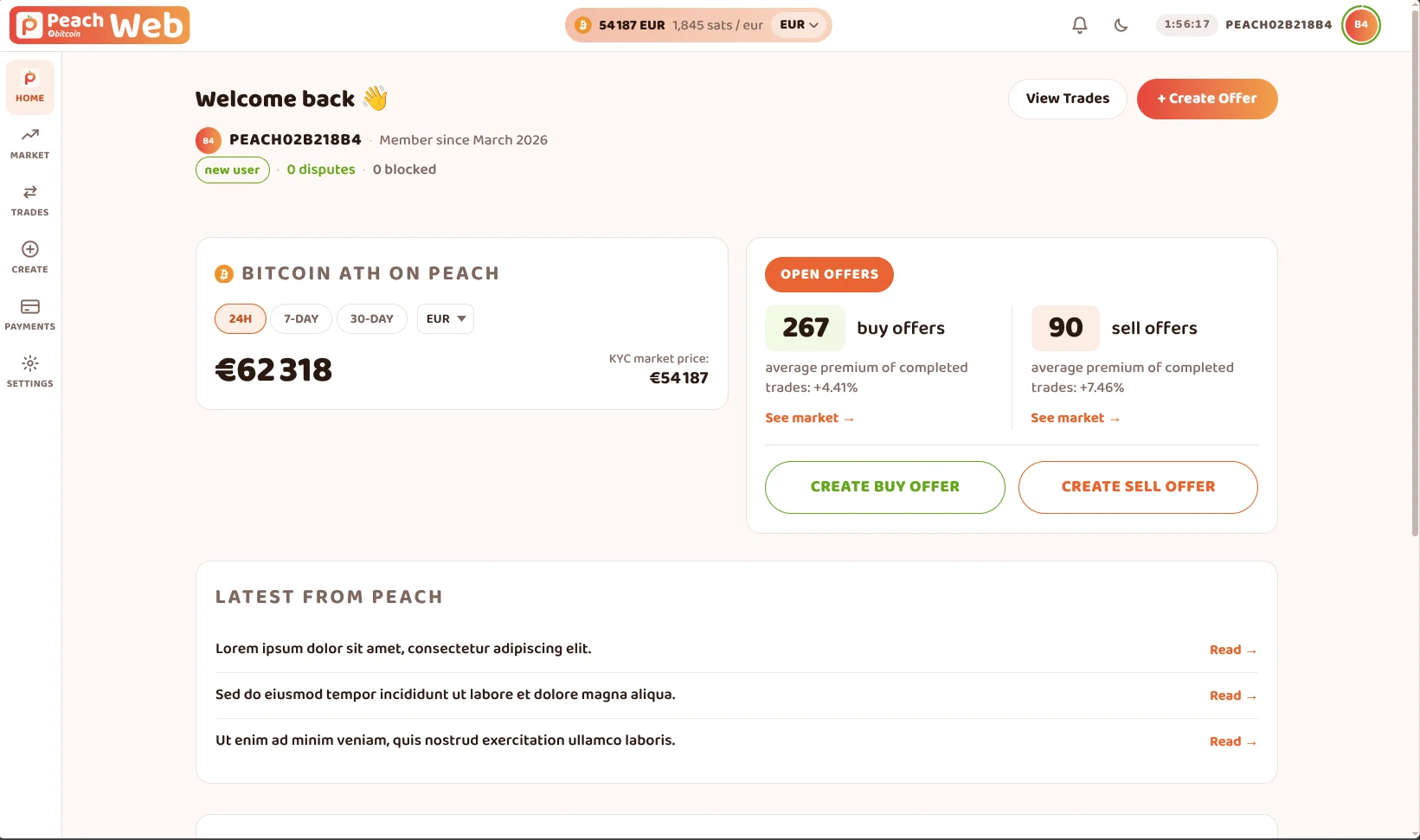 That's it, your browser is paired, just like WhatsApp Web. You'll see the homepage with different sections like news, stats and your profile summary
3. Add a payment method
Before adding apayment method, you may visit the Market View tab to see which payment methods are the most liquid in the market. This may help you chose among the (maybe) various means you have. Use the filters to narrow it down by currency and method.
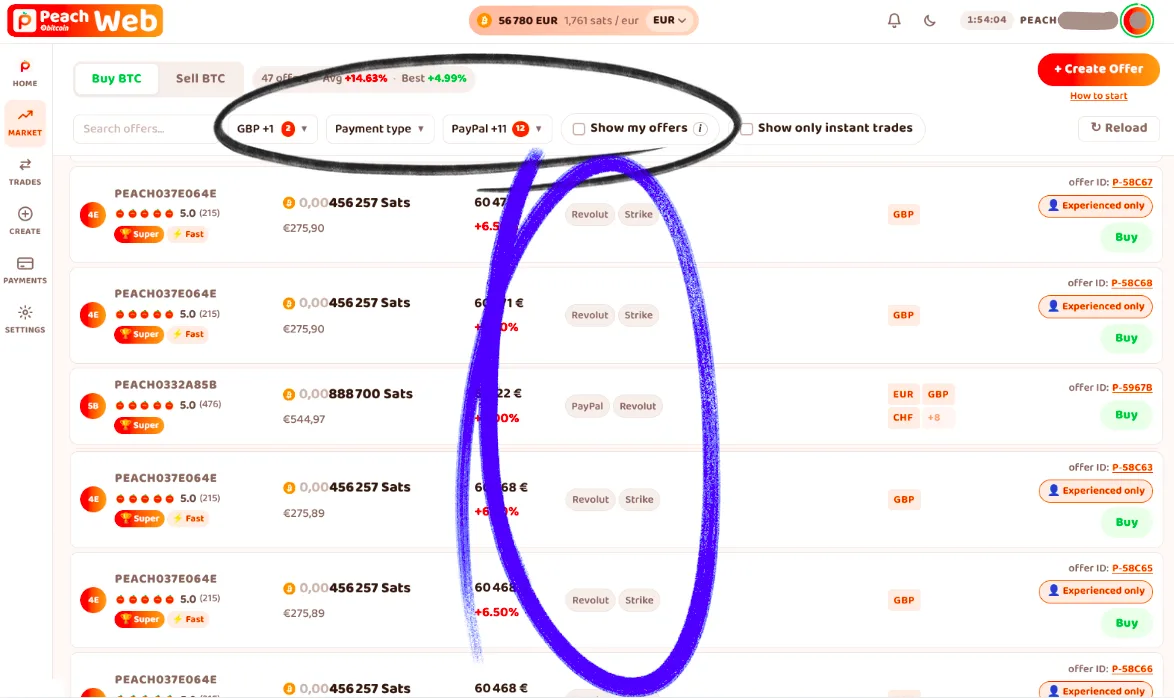
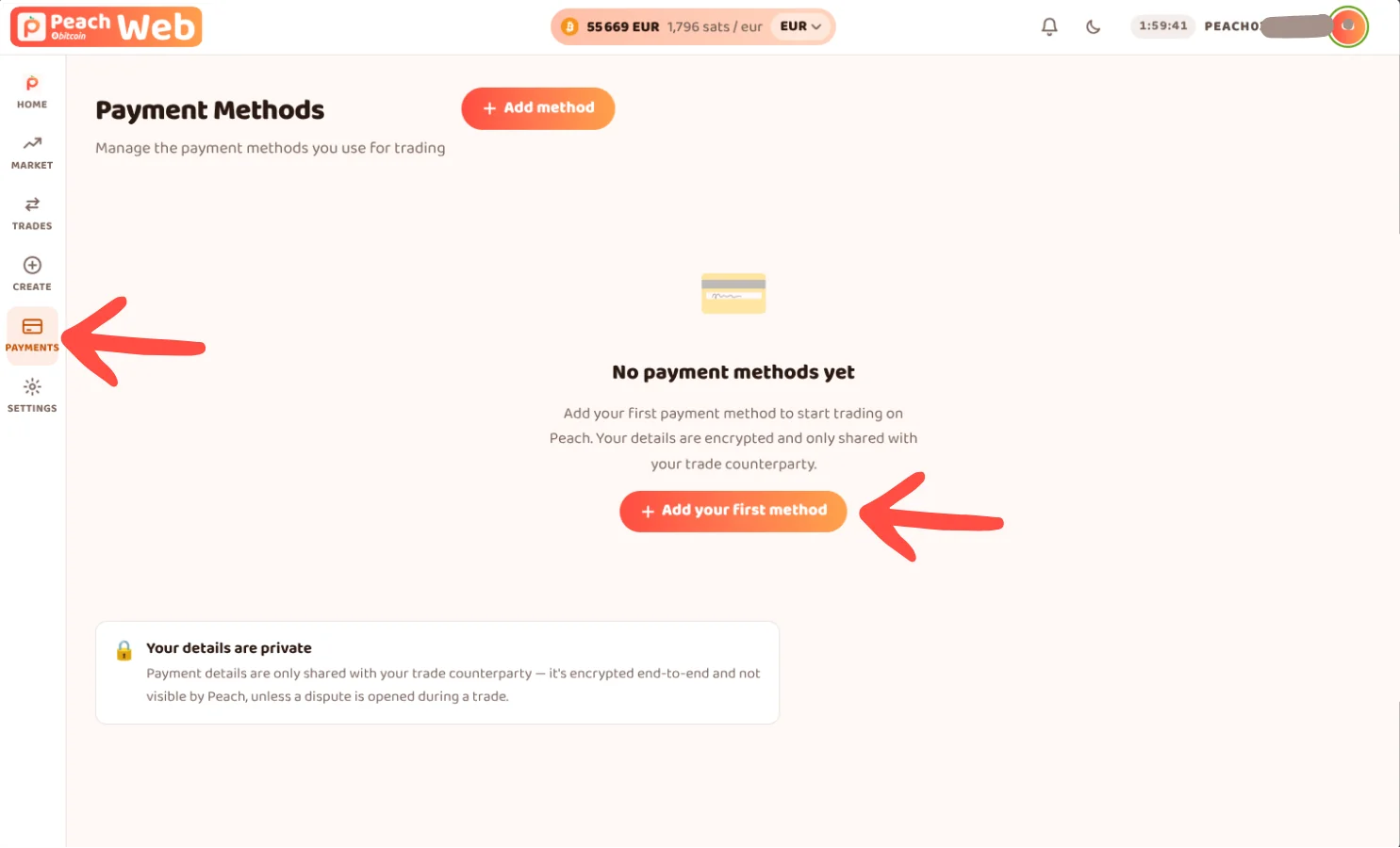
Then, either click on an offer then click to add a payment method (see step 4), or go straight to the Payments tab and follow the flow to add your preferred payment method details. Keep in mind, we ask for your payment details to fend off scams, so enter them accurately! These are encrypted and only visible to you and your counterparty once you're in a contract together.
4. Buy bitcoin
The fastest way to buy is to search through existing sell offers – the bitcoin in sell offers are already locked in escrow and ready to be traded. For this, click on "Market" and go on the Buy tab to scroll through the existing offers. Pick the most appealing one: compare amounts, premiums and the trader's reputation.
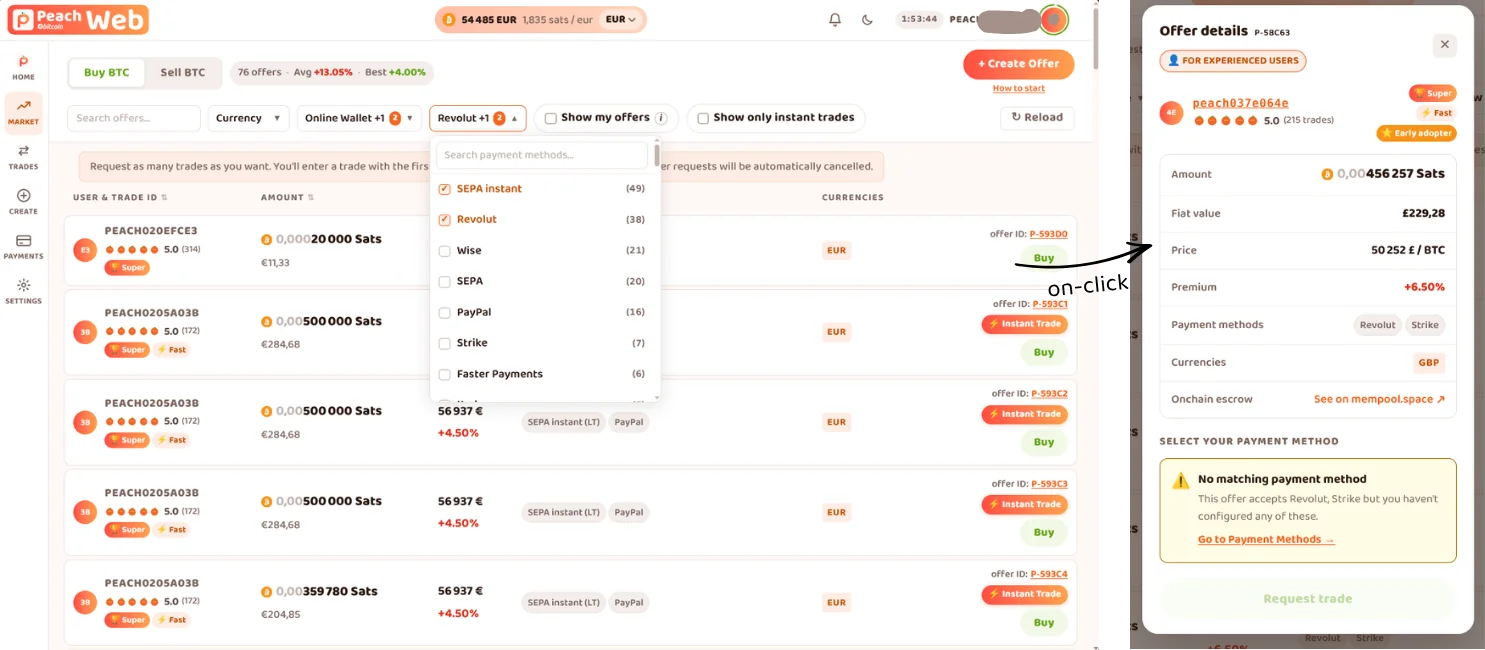 Click an offer to see its full details, then request a trade. If you don't have a matching payment method yet, you'll be prompted to add one. You can send several requests at once. The first request to get accepted will cancel your other ones. So feel free to send many requests. Careful, cancelling a request too soon (12h) will impact your reputation negatively. So only make requests to offers that interest you.
Note: instant offers do not require your counterpart's confirmation to trade. Requesting one will take you to the trade right away. Be ready to make the payment within one hour if you take one.
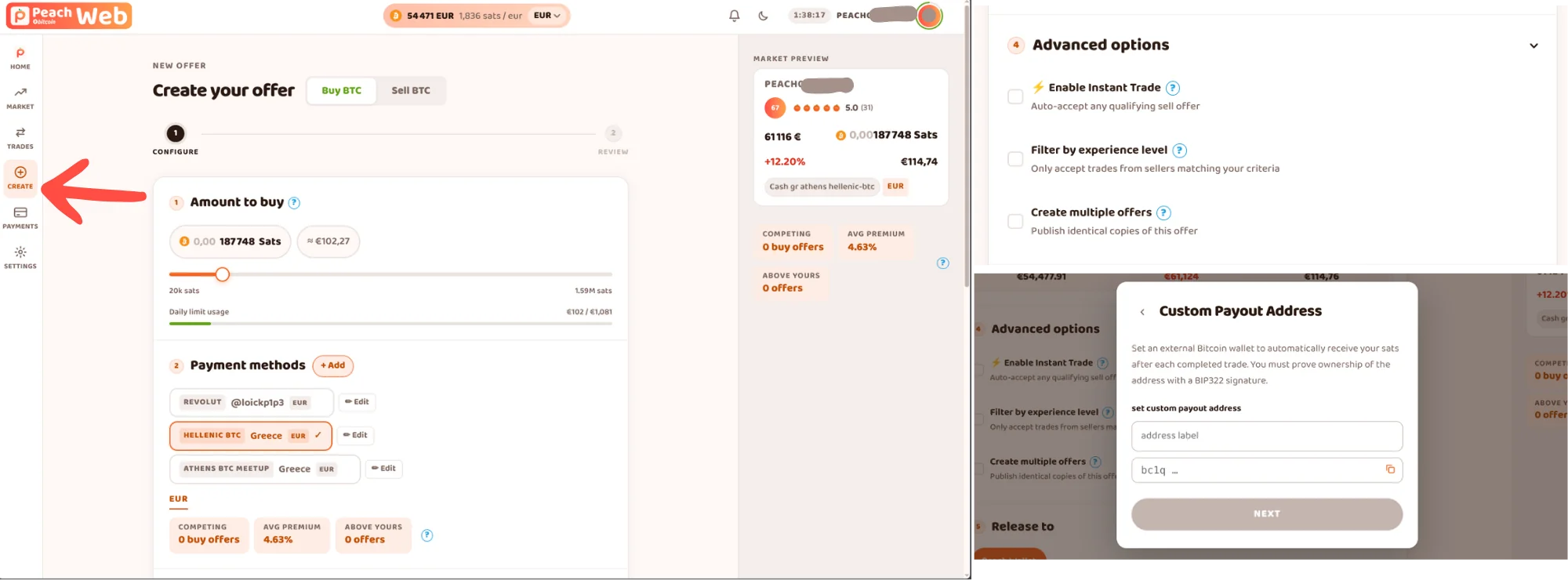 Can't find anything matching your preferences? Create your own buy offer. A higher premium motivates sellers to take it. Check out the advanced options to make your trade faster (although it's not recommended for new users), create multiple offers, and filter out other users according to their experience level.
You can also set up an external payout address (straight to cold storage, for example!). A video guide for web is coming soon, but in the meantime check out this one for mobile, the concept is the same.
Can't find anything matching your preferences? Create your own buy offer. A higher premium motivates sellers to take it. Check out the advanced options to make your trade faster (although it's not recommended for new users), create multiple offers, and filter out other users according to their experience level.
You can also set up an external payout address (straight to cold storage, for example!). A video guide for web is coming soon, but in the meantime check out this one for mobile, the concept is the same.
Note: new users (3 trades or fewer, and less than 500 CHF in volume) can only post 1 buy offer at a time.
5. Sell bitcoin
Make sure your desired payment method is set first (see step 3). From the Sell tab, scroll through the existing offers and pick one that fits your terms. Send trade requests, and if accepted you'll have to fund the escrow as soon as possible. Here, same thing, you can send multiple trade requests and the first one to be accepted will cancel all your other ones.
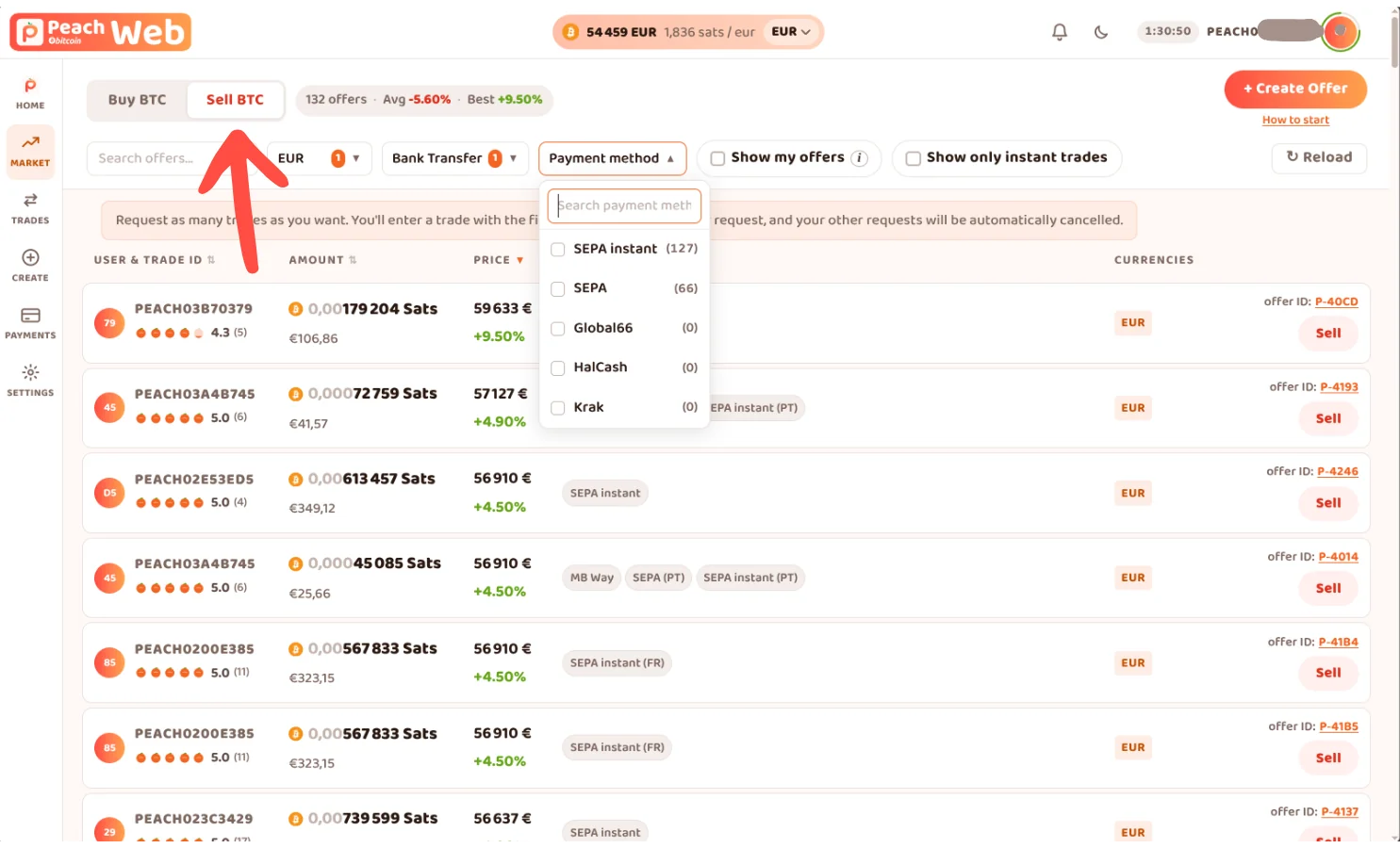
Or create your own sell offer:
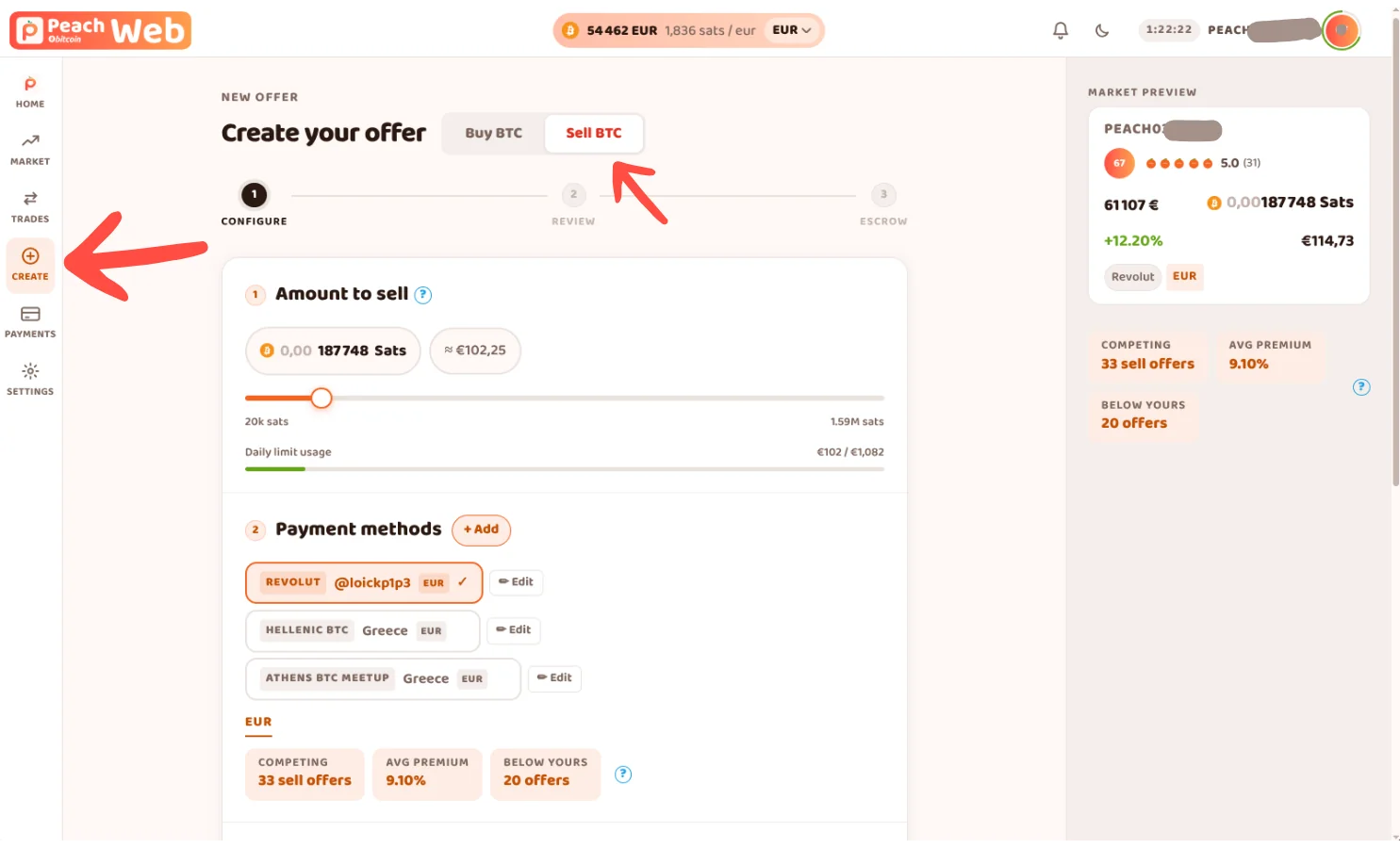 Create a sell offer on your own terms. In order to have your offer published, you have to fund the escrow right away. A lower premium attracts buyers faster. Compare your offer to the competing offers in the market, and make sure it's appealing for others with a reasonnable premium. 0% (the normal market price) will likely have buyers jump-in on the occasion.
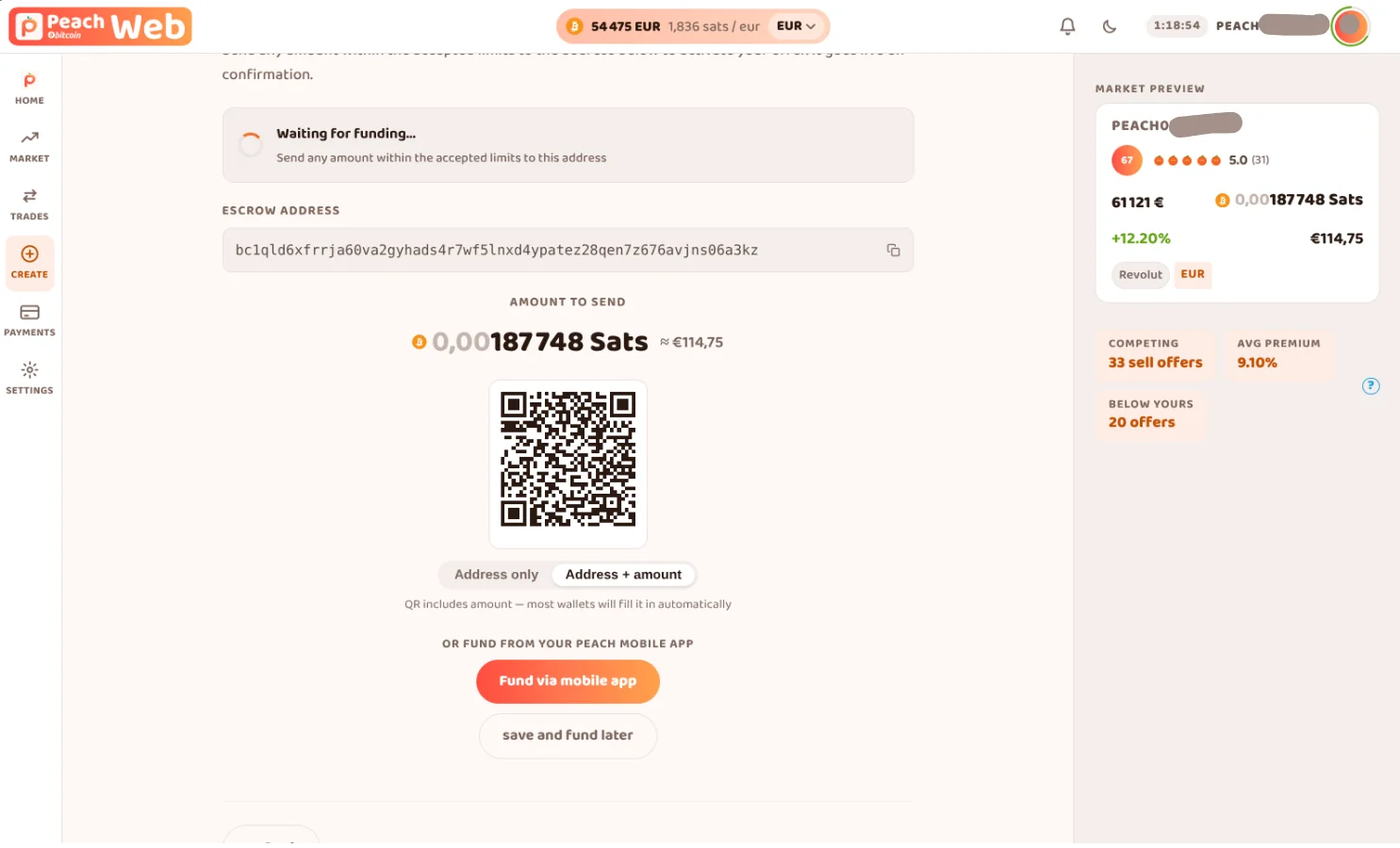 The escrow can be funded from your Peach Wallet (create the offer in the web and confirm on mobile) or from any other bitcoin wallet. Funding the "wrong" amount will prompt you to cancel and refund, or continue with that amount. Beware: if the amount is beyond our limits, your escrow will have to be refunded.
6. Execute your trades and stay alert for notifications
Keep an eye out for trade requests and other notifications in your browser or on the mobile app, and simply follow the flow as each trade progresses. In case of a problem, there is a dispute button near the chat. A mediator will jump-in if you click that button.
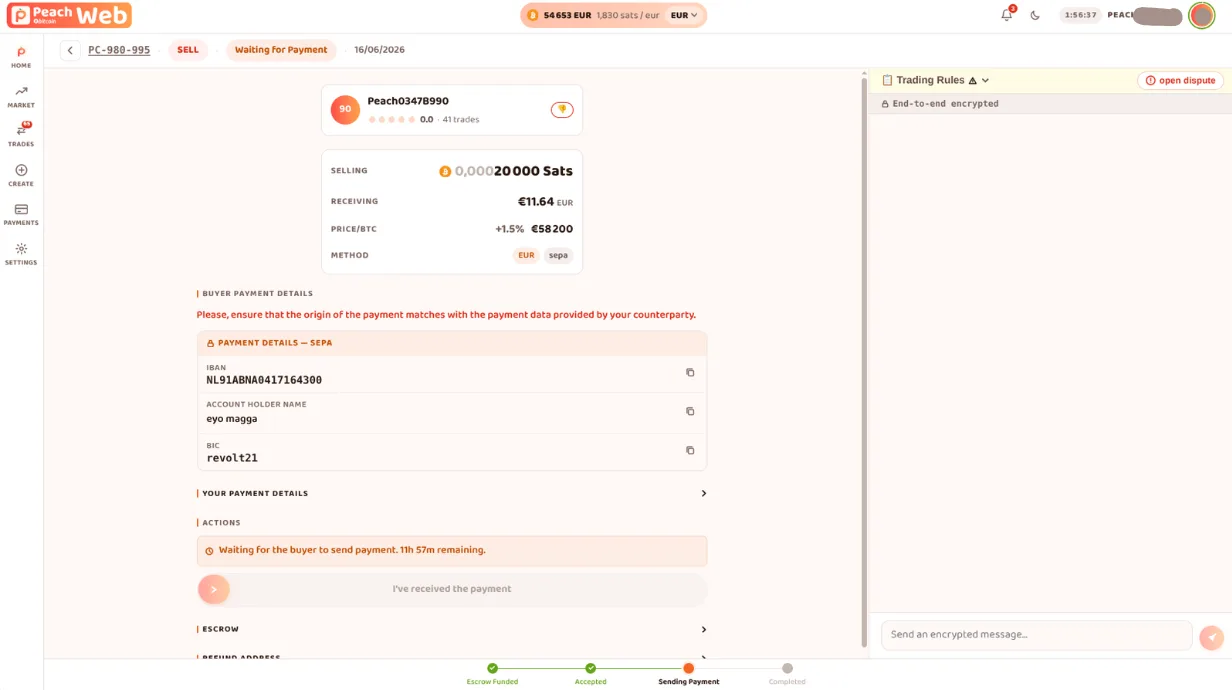 Once you're in a contract, follow the flow: send or confirm the payment, verify the payment destination (if you are buying) and provenance (if you sell), chat over end-to-end encrypted messaging if needed, and watch the escrow progress bar move from funded to completed.
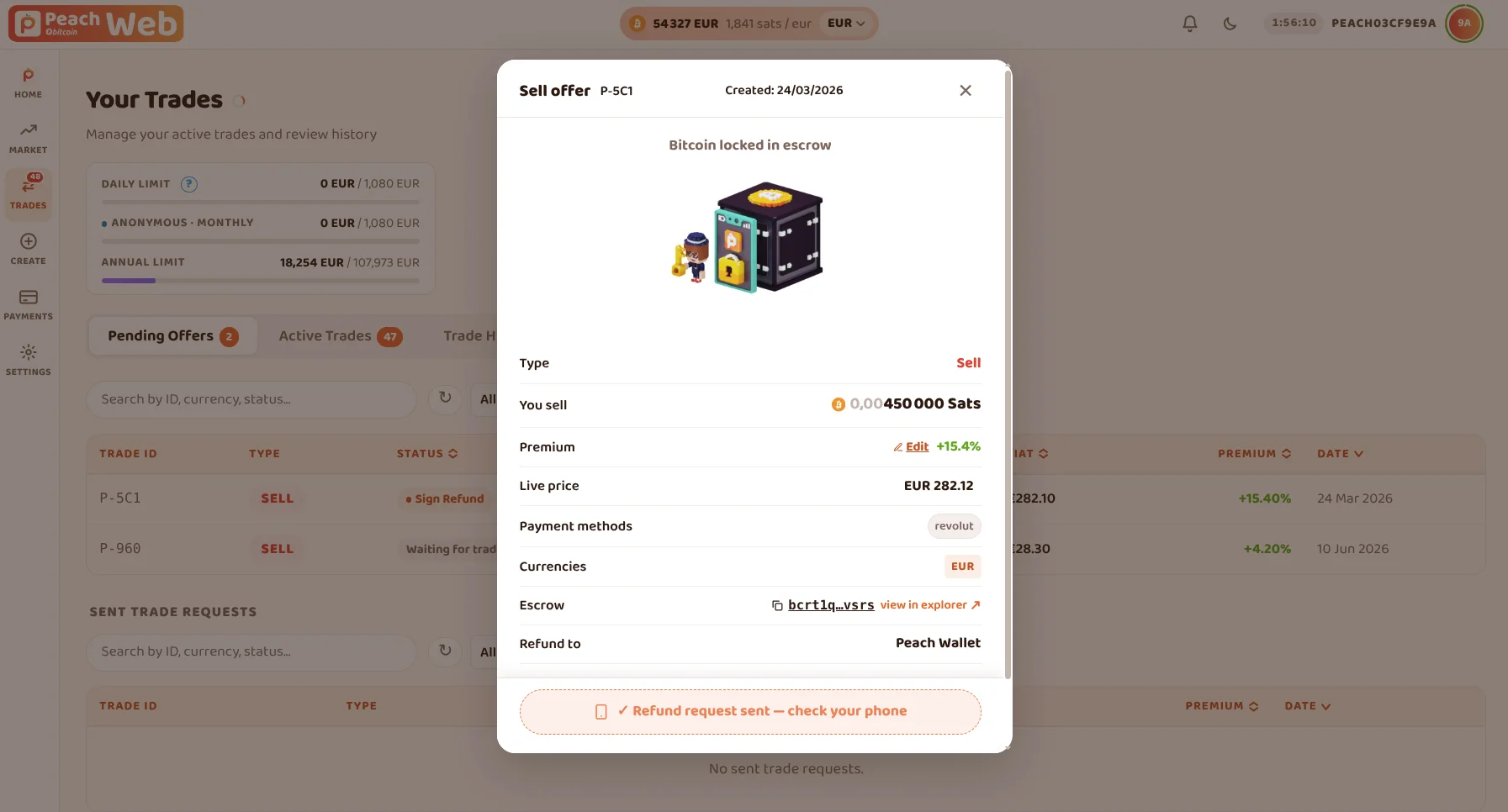 Whenever an action needs your keys, like confirm payment receipt, confirm payment sent or refunding the escrow, you need to confirm it on your phone. Your keys never leave your device.
7. Disconnect a session
Ending a session is easy: simply closing the window logs you out. This is especially handy on a shared or public computer.
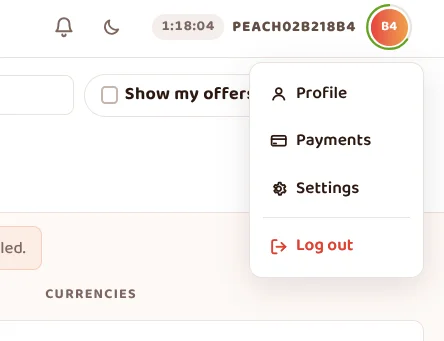 You can also log out at any time with the button in the top right corner
Got more questions? Check the Web App FAQ!